HOW TO PROGRAM
DIGITIZE CARDS

Download the PDF Guide Below

Activating Your Google Device

Setup Steps for your Google Review Digitize Device

Before you start: Do you have an active Google Business Profile?

YES: Skip to Step 1 below.

NO: Click the button below to create one.

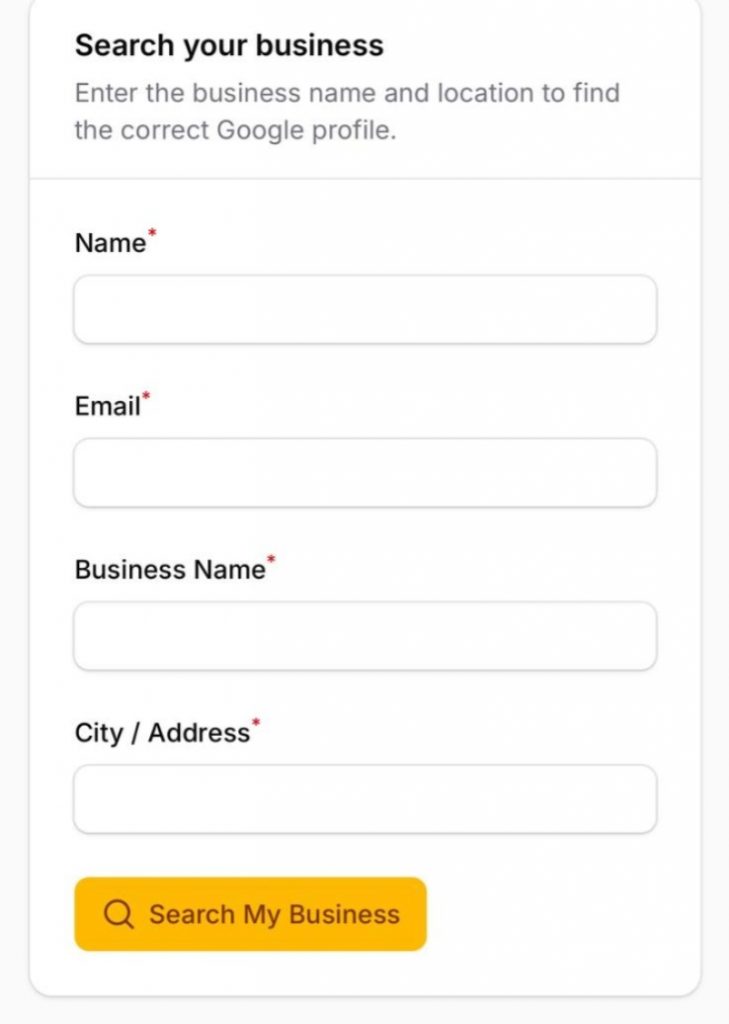
Enter your name & Email

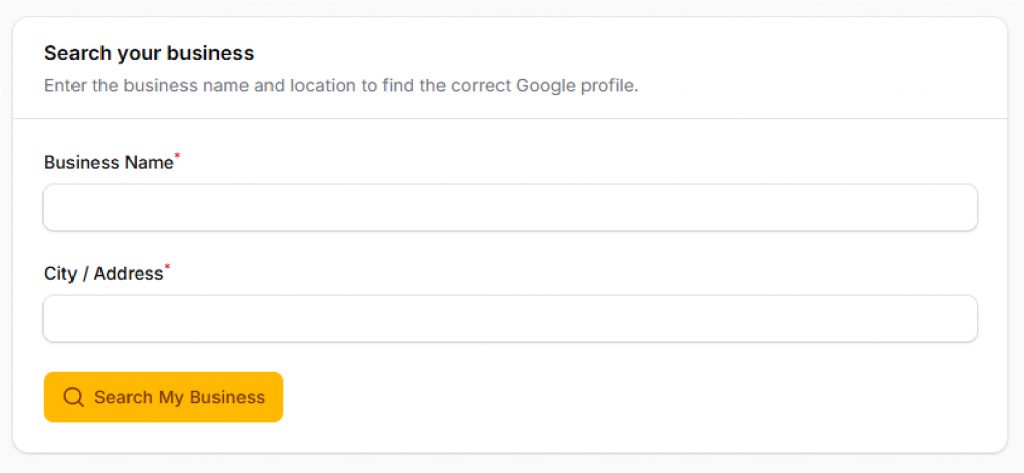
Enter your business name and city or address, then click Search My Business.
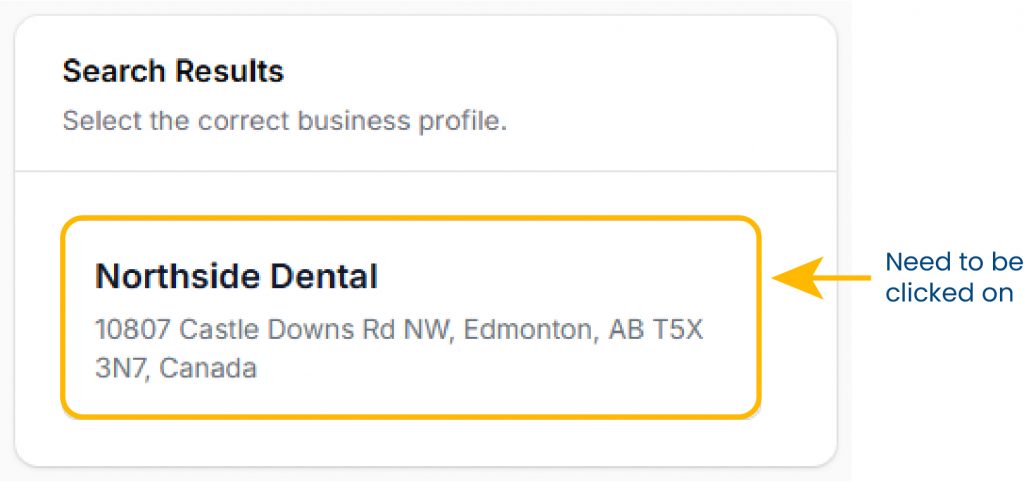
Choose by clicking on your business from the list
You’re DONE. You’re device is programmed for your business!

Example Activation

Activating a NorthSide Dental Clinic in Edmonton
The Search: In this example, we enter “NorthSide Dental” and “Edmonton” into our business lookup tool.
The Results: Our system instantly finds every matching location in the city. This allows you to easily identify your specific address among other nearby results.
The Selection: We click select on the 10807 Castle Downs Rd NW listing to link our device.
The Result: Your device is instantly live! You will see the Activation Complete screen and receive your bonus guides immediately.

Activation Complete!

Your device is live and ready to collect reviews.

Step 1) Create Your Free Account

Simply tap or scan your Digitize Stands device (Stand, Plate, Card, or Sticker) to begin. This will automatically launch our secure account creation portal.

Create Your Free Account

Simply tap or scan your Digitize Stands device (Stand, Plate, Card, or Sticker) to begin. This will automatically launch our secure account creation portal.

NFC Tools App – iPhone

NFC Tools App – Android

How To Program Your Stand

Open the google browser
Search the name of your business followed by “reviews”
Click “More reviews” located under the Google Review Summary
Click on the share button located at the very bottom of your screen, in the middle.(on the left of the home button)
Click “Copy URL”
Download the NFC tools app

NFC Tools App – iPhone

NFC Tools App – Android

Open the NFC tools app Click, Write>Add a record>URL/URI>paste the URL into the provided slot
Click edit of needed to change the grayed out box to “https://”
Click “OK” at the very top right of your screen”
Click “Write” and bring your device to the front of your stand
For any question please reach out via email at info@digitzestands.ca